Introduction
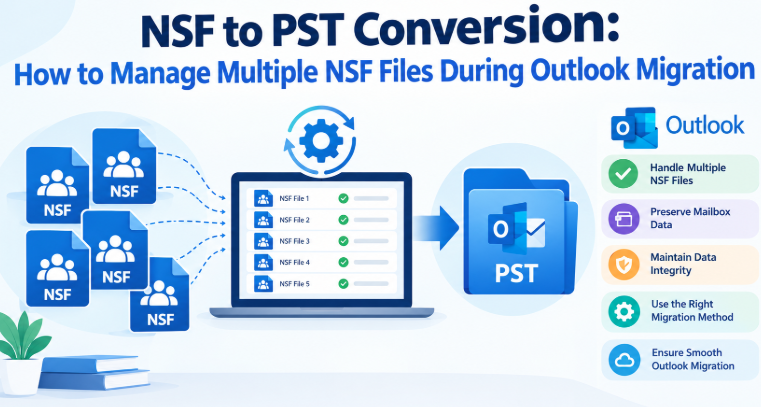
Lotus Notes and HCL Notes use NSF (Notes Storage Facility) files to store mailbox information. During migration to Microsoft Outlook, users need to convert their mailbox data to PST (Personal Storage Table) format. However, with several NSF files, the conversion process can be more complex, especially if the files contain different mailboxes, archived emails and various types of data.
Before converting NSF files to PST, users should identify the required files, verify their availability and choose an appropriate migration method. Understanding the available options helps users organize their mailbox data and prepare for a more reliable Lotus Notes to Outlook migration.
Why Is Mailbox Data Spread Across Multiple NSF Files?
Users can have multiple NSF files for various reasons. Organizations may have separate databases for different departments, while individual users may have preserved mailboxes from previous years. Local databases and backup copies can also increase the number of NSF files that need to be managed.
Typical reasons include: • Mailbox archiving: Older emails can be saved in separate NSF archive files.
• Departmental databases: Different teams can use separate Lotus Notes databases.
• Multiple user accounts: Administrators may need to work with multiple NSF files during an organizational migration.
• Data backup: Users can have separate copies of mailbox data for recovery purposes.
Identifying these sources before conversion helps users avoid missing important mailbox data and processing unnecessary files.
Challenges of Preparing Multiple NSF Files for Outlook Migration
Working with multiple NSF files involves more than simply selecting files and exporting their data. Users should be aware of the following challenges before starting the conversion process:
• File identification: It can take time to determine which NSF files contain the required mailbox information.
• Duplicate data: Multiple files can contain duplicate emails or archived data.
• Folder organization: Users must ensure that mailbox folders remain organized after migration.
• Data completeness: Users should verify important emails, attachments, contacts and other supported items.
• Migration effort: For large migrations, processing files individually can increase the time and effort required.
Preparing a file inventory and checking the source data can help users plan their NSF mailbox conversion more effectively.
Manual Method to Convert NSF to PST
One manual approach is to export NSF mailbox data to an intermediate format, import the supported data into Outlook and save it as a PST file. One email-focused method involves exporting messages to EML, importing them into Outlook, and then creating a PST file from the imported mailbox data.
The specific steps depend on the versions of Lotus Notes and Outlook and the available export options.
Steps to follow: 1. Open Lotus Notes and navigate to the required mailbox database.
-
If the installed version supports it, export the relevant email messages in EML format using the available options.
-
Import the exported messages into a compatible Outlook environment using a supported method.
-
Move the imported emails into the appropriate folders.
-
Use Outlook’s supported import and export functionality to create a PST file.
-
Repeat this process for other NSF files and check the resulting data.
This method primarily focuses on email migration. It does not automatically guarantee that contacts, calendars, tasks and other NSF database content will migrate through the same process.
Note: The manual NSF to PST conversion process can vary depending on the Lotus Notes or HCL Notes version and the import options supported by Outlook. Ensure that the required export and import methods are available in your environment before starting the migration.
Disadvantages of the Manual Method
• Requires access to compatible Lotus Notes and Outlook environments.
• Can involve several intermediate export and import steps.
• Processing several NSF files individually can be time-consuming.
• Folder organization and email completeness need to be checked carefully.
• Not all types of mailbox items can be migrated through an email-focused approach.
Therefore, users should evaluate their mailbox requirements before selecting a manual NSF to PST conversion method.
Professional Approach to Convert NSF files into PST Format
For users who need to convert several mailbox files, another option is to use dedicated NSF to PST conversion software. The software can read supported NSF data and export it to the Outlook-compatible PST format without relying solely on intermediate email formats.
Softaken NSF to PST Converter is one option for users who need to migrate NSF mailbox data to PST. This tool is specifically designed to convert NSF files into PST format. Its user-friendly interface allows non-technical users to operate the software easily. It offers features designed to simplify the conversion process and manage mailbox data efficiently.
The professional conversion approach can be helpful when users need to process multiple NSF files, select specific mailbox folders and preview the available data before exporting. Users should still verify the output and keep backups of their original NSF files.
Key Features of the Software
Before choosing professional NSF conversion software, consider whether it offers the functionality required for your migration.
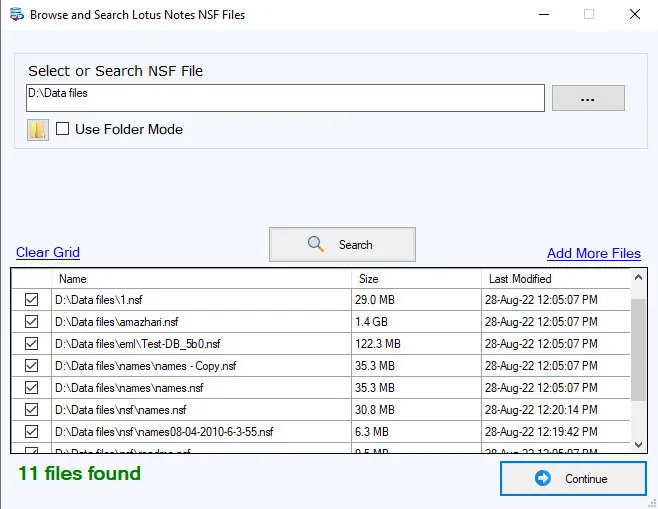
• Multiple NSF file support: Helps users process several source files in one workflow when batch conversion is supported.
• Folder selection: Allows users to select the required mailbox folders instead of converting everything.
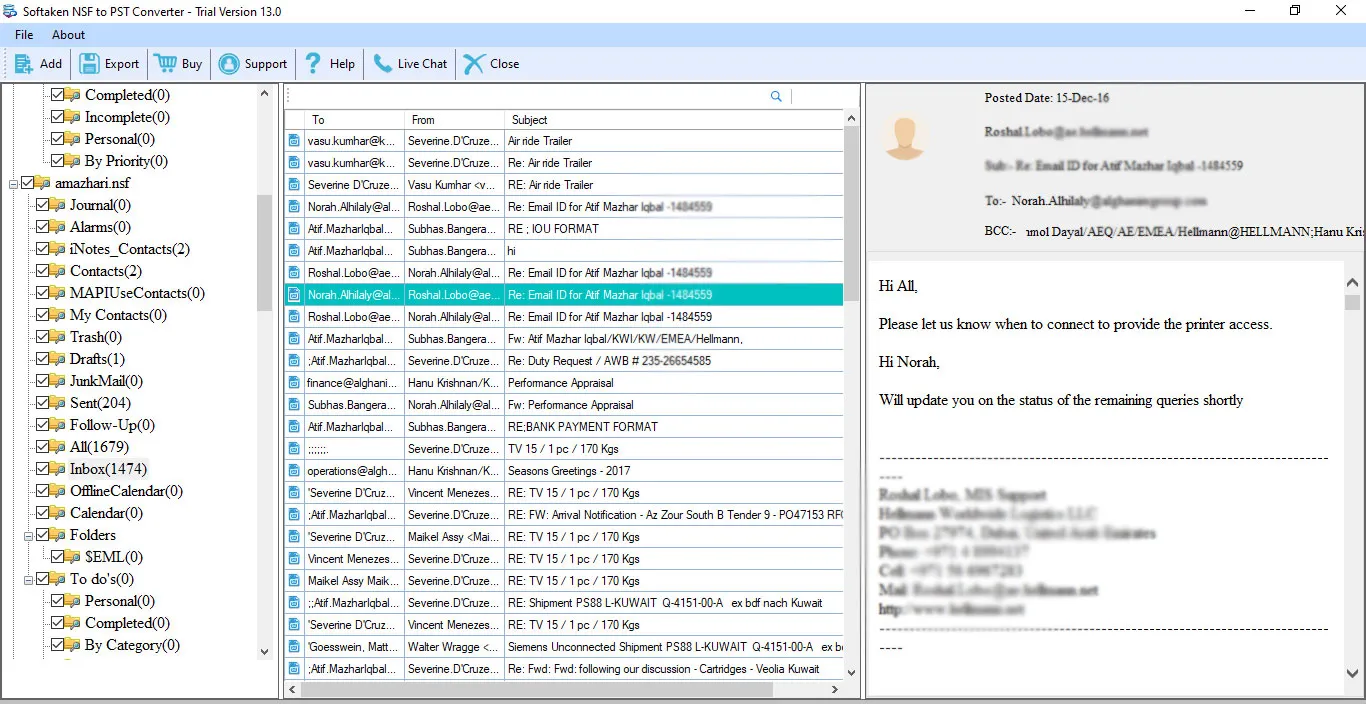
• Data preview: Allows users to inspect mailbox data before conversion.
• PST export: Converts supported NSF mailbox data to an Outlook-compatible format.
• Folder structure preservation: Helps maintain the original mailbox structure when supported.
• Attachment handling: Supports transferring compatible email attachments with their messages.
How to Convert Multiple NSF Files Using Professional Software
- Install and open the conversion software on a compatible computer.
-
Add the required NSF files using the file selection option.
-
Preview the selected files and preview the available mailbox data, if supported.
-
Select the required mailbox folders or items.
-
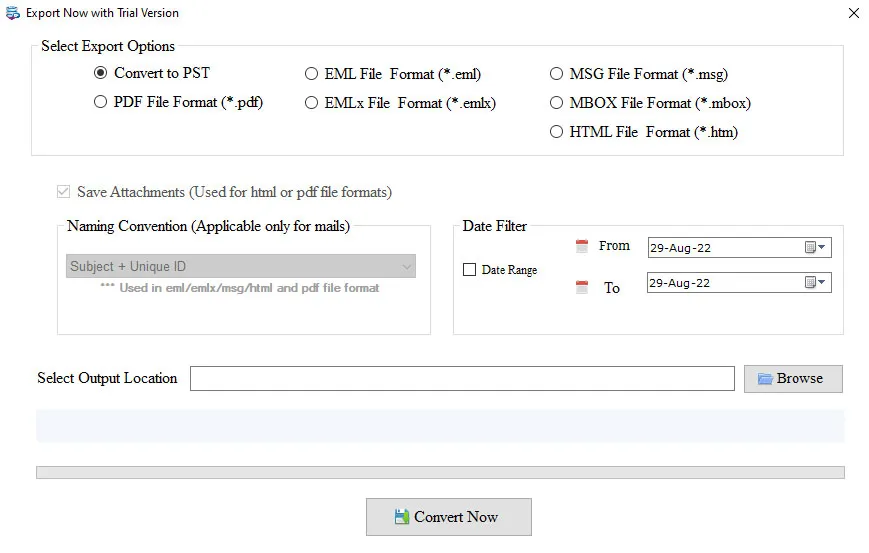
Choose PST as the destination format.
- Select an output location with sufficient storage space.
-
Start the conversion and wait for the process to finish.
-
Open the resulting PST file in a compatible Outlook version and check the converted data.
Note: The professional conversion tool requires the Lotus Notes application to be installed on your system to access NSF files.
Advantages of the Professional Approach
• Can simplify the handling of several NSF files when batch processing is supported.
• Can reduce repetitive manual export and import steps
• Provides features such as data preview and selective conversion.
• Offers a direct PST export method when supported by the software.
Conclusion
Managing multiple NSF files requires careful preparation, appropriate conversion methods, and post-migration verification. A manual approach can work for selected email data, but processing multiple files can require additional effort.
Professional NSF to PST conversion software can simplify migration by supporting multiple files, selective mailbox conversion, and PST export, depending on its available features. By comparing both approaches and checking the resulting PST files, users can make a more informed decision about their Lotus Notes to Outlook migration.
Frequently Asked Questions
Q1. How can users convert multiple NSF files to PST? Ans. Users can use NSF to PST conversion software with batch processing support to convert multiple NSF files in a single workflow.
Q2. Does manual NSF to PST conversion migrate all mailbox items? Ans. Not necessarily. An EML-based workflow primarily focuses on emails, while other items may require separate supported migration methods.
Q3. Why should I preview NSF files before conversion? Ans. Previewing helps users identify the required mailbox data and select the appropriate files and folders.