Introduction
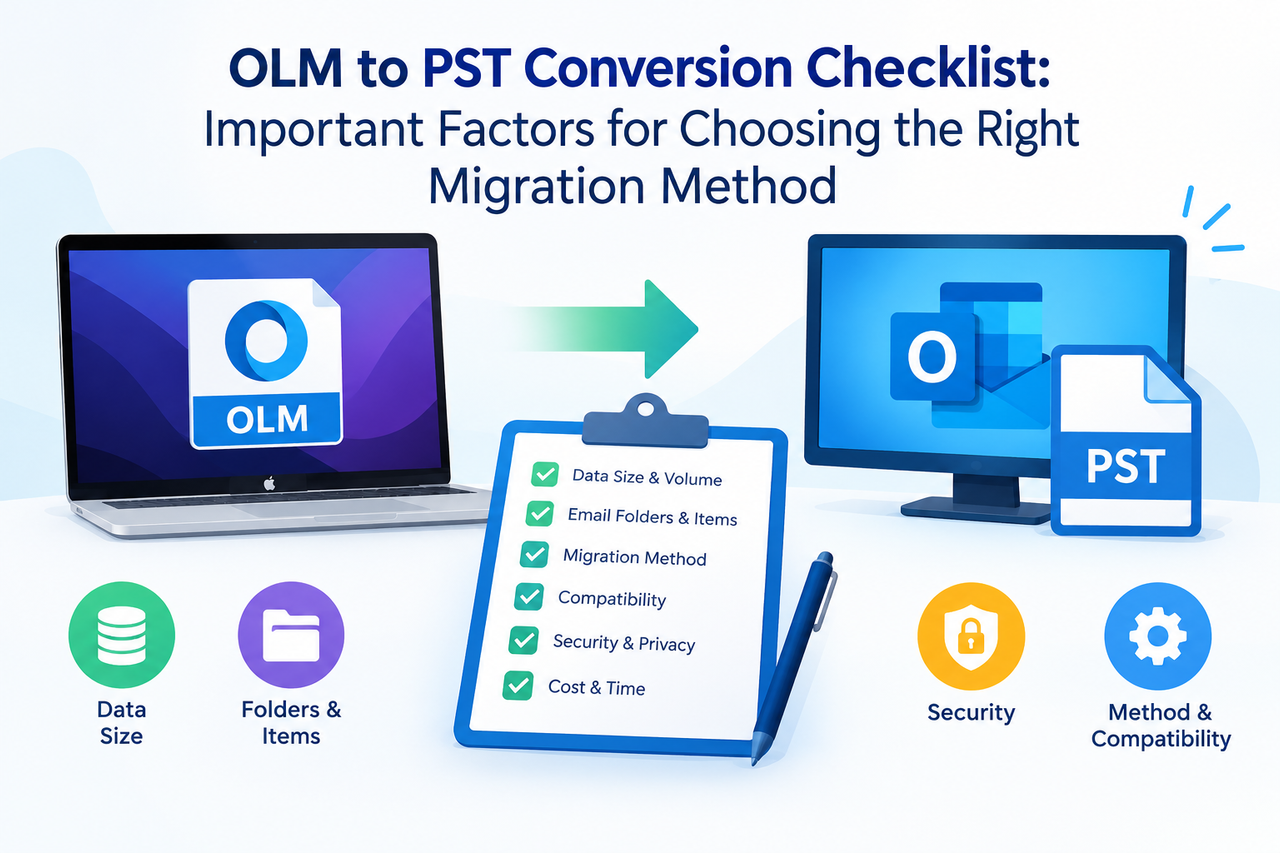
Moving mailbox data from Outlook for Mac to Outlook for Windows is more than simply choosing a conversion technique. Outlook for Mac exports mailbox data to OLM files, while Outlook for Windows uses PST files.
Choosing the wrong approach can lead to compatibility issues, incomplete transfers and trouble accessing mailbox items after migration. Before starting the process, users should take into account their source files, mailbox size, data requirements, available software and system requirements. This checklist outlines the important things to consider when selecting the right OLM to PST conversion method.
1. □ Check the Condition of Your OLM Files
Before you decide on a migration strategy, ensure that the source OLM files are available and accessible.
□ Find the exported OLM files on your Mac and other storage device.
□ Make sure the files are saved where you expect them to be.
□ Ensure that the files are protected against accidental deletion or becoming unavailable.
□ Make a backup copy before starting the conversion process.
Why it matters: Checking the source files can help you uncover access issues before they affect the transfer process.
2. □ Select the Mailbox Data You Want to Convert
Different users have different mailbox needs. Some want only emails, while others want to keep attachments and folders.
□ Choose the mailbox items you want to move.
□ Identify important emails and their attachments.
□ Check the current folder structure.
□ Check whether you need to convert one OLM file or multiple files.
Why it matters: Understanding your data requirements allows you to select a migration approach that meets your specific needs. Do not assume that every method will work with every Outlook item; check the supported data types before proceeding.
3. □ Consider Options for Manual Conversion
Manual transfer is appropriate when users have compatible Outlook applications and the volume of mailbox data is manageable. However, the available process depends on the Outlook versions and account configuration.
□ Make sure Outlook for Mac and Outlook for Windows are accessible.
□ Make sure you can access the original mailbox and import the exported data into a supported application.
□ Check that your Outlook versions support the necessary export and import procedures.
Why it matters: Manual migration can require additional steps and compatible applications. Outlook for Windows cannot open an OLM file directly, so do not expect it to support direct OLM importing.
4. □ Check Compatibility Before You Selecting a Conversion Tool
If manual methods are not sufficient for your needs, verify whether conversion software can handle your source files and the target format.
□ Ensure the software supports OLM as the input format.
□ Ensure PST is available as the output format.
□ Make sure it runs on your operating system.
□ Review the supported Outlook versions and mailbox items.
□ Verify whether the software offers file previews and other verification options.
Why it matters: Compatibility checks help you avoid problems that can arise from choosing software that does not support your environment and the data you need.
5. □ Compare Conversion Requirements With Available Features
□ Check whether multiple OLM files can be processed if needed.
□ Review folder and attachment management features.
□ Check whether you can select specific mailbox data for conversion.
□ Check whether the software allows you to choose a destination.
□ Review the available support documentation and conversion instructions.
For users evaluating a specific solution, the Softaken OLM to PST Converter is an option worth considering. It provides multiple features like batch conversion, selective conversion, preview option and more.
Why it matters: Matching your requirements with provided features helps you choose the right approach without relying on unverified assumptions.
6. □ Prepare the Destination Before Conversion
A successful conversion also requires ensuring that the destination is ready and that enough storage is available.
□ Choose a location with enough free disk space.
□ Choose a destination folder with a meaningful name.
□ Never replace the original OLM files with the converted files.
□ Confirm that the destination can be accessed after conversion.
□ Keep the source backup until the results are verified.
Why it matters: Proper destination preparation helps avoid file-management issues and preserves the original mailbox data.
7. □ Verify the Converted PST Files
Completing the conversion does not mean that the created PST files automatically meet your requirements. Verify the output before relying on it.
□ Ensure that the PST files were created successfully.
□ Verify the size and location of the output files.
□ Open the PST files using a compatible version of Outlook.
□ Check sample emails and attachments.
□ Compare the transferred folder structure with the source.
□ Verify important messages to confirm that the expected data is present.
Why it matters: Verification helps you identify missing and inaccessible content before the converted mailbox becomes part of your regular process.
Conclusion
There are several factors to consider when choosing the correct OLM to PST conversion method, including the condition of the source files, mailbox requirements, application compatibility, conversion features, storage options and output verification. Manual migration can be appropriate in supported environments. Alternatively, dedicated conversion software can be considered if its documented capabilities better match the user's requirements.
Before you start, go through this checklist to help you make an informed selection, minimize avoidable migration issues and verify that the resulting PST files can be used in Outlook for Windows.